
The pictures show iOS 27. On older versions the screens look slightly different, the entries are the same. These are all the details you need:
| Host name (incoming and outgoing): | mail.dotplex.com |
| Username: | Your complete email address |
| Password: | Your email password |
The iPhone picks ports and encryption itself. All server details are listed under Server information.
Step by step
1. Open Settings and tap "Apps", then "Mail", "Mail Accounts" and "Add Account".
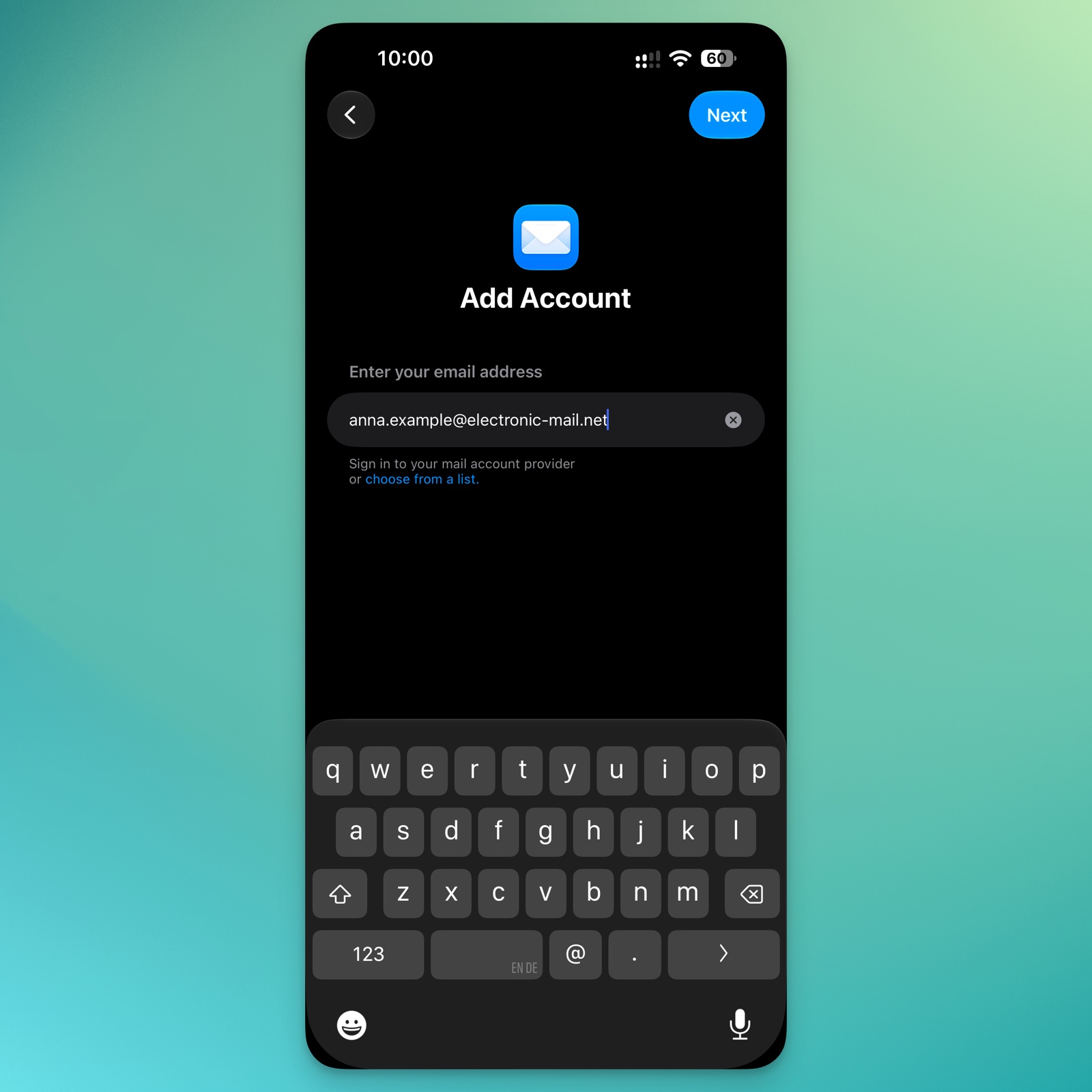
2. Enter your email address and tap "Next".
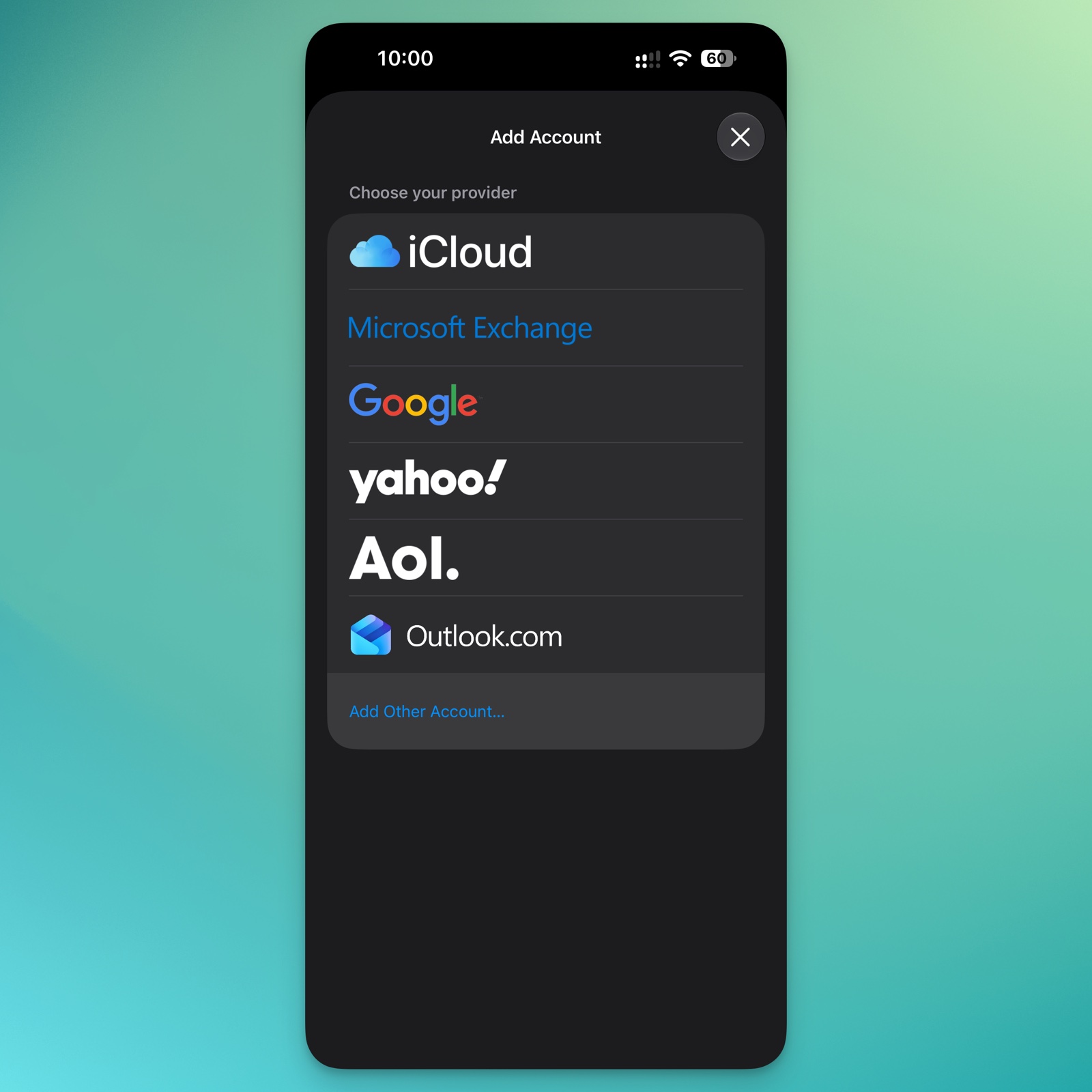
3. The iPhone shows a list of providers. Tap "Add Other Account…" at the very bottom.
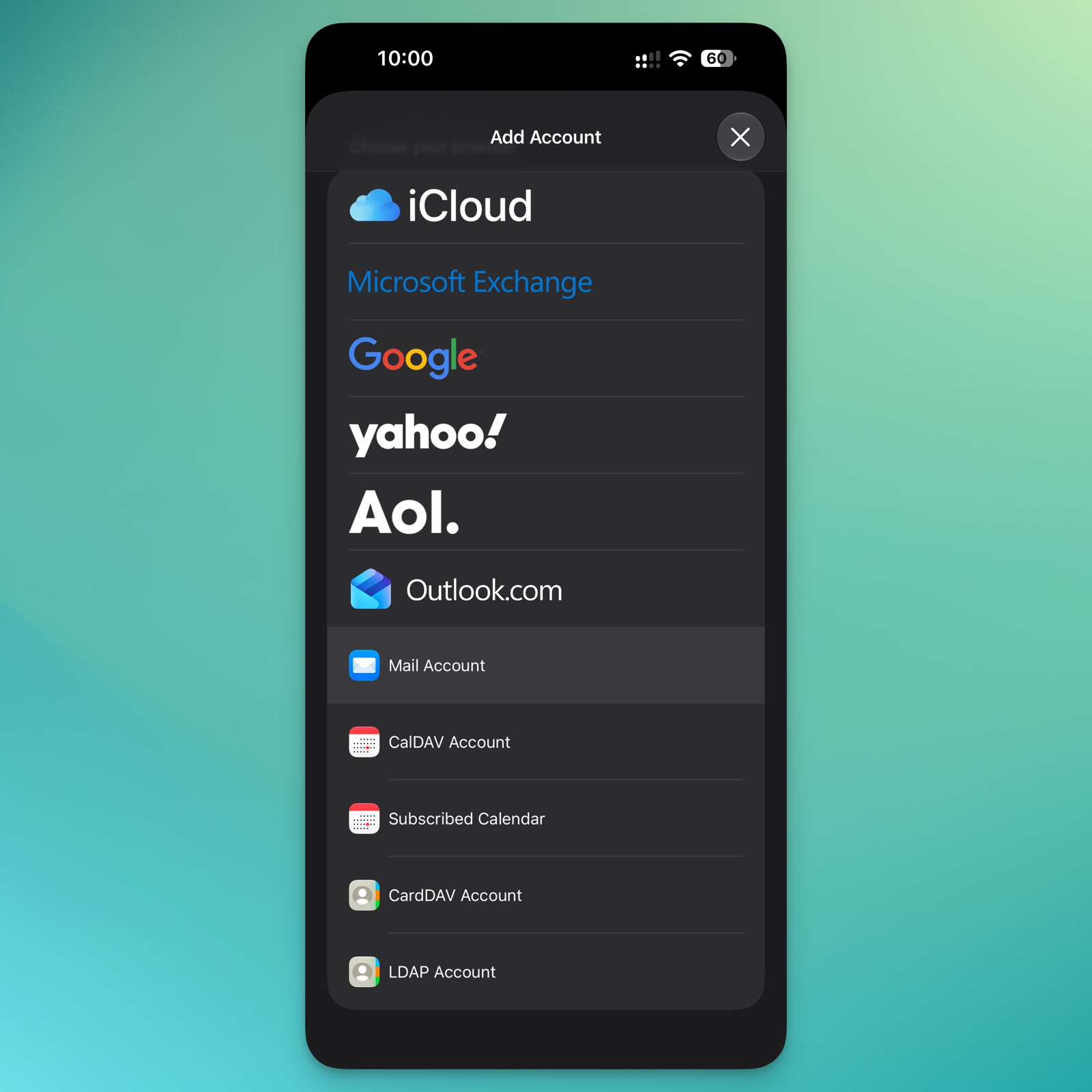
4. Tap "Mail Account".
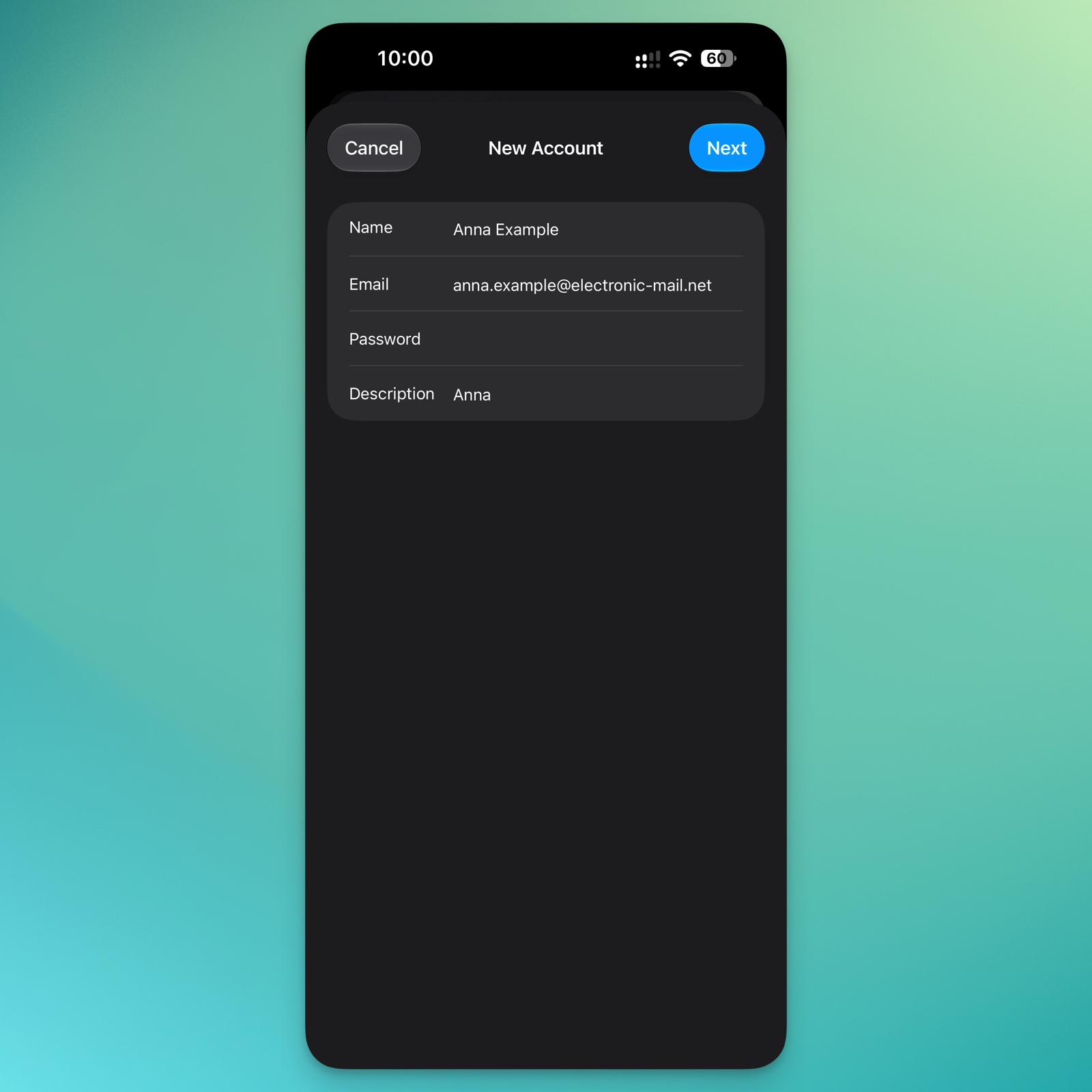
5. Enter your name as recipients should see it, your email address, your email password and a description under which the mailbox appears on the iPhone. Tap "Next".
6. Leave "IMAP" selected. For both the incoming and the outgoing mail server, enter mail.dotplex.com as the host name, your complete email address as the username and your email password. Fill in username and password for the outgoing server too, even though the iPhone marks these fields as "Optional". Tap "Next". The iPhone verifies the details, which can take a moment.
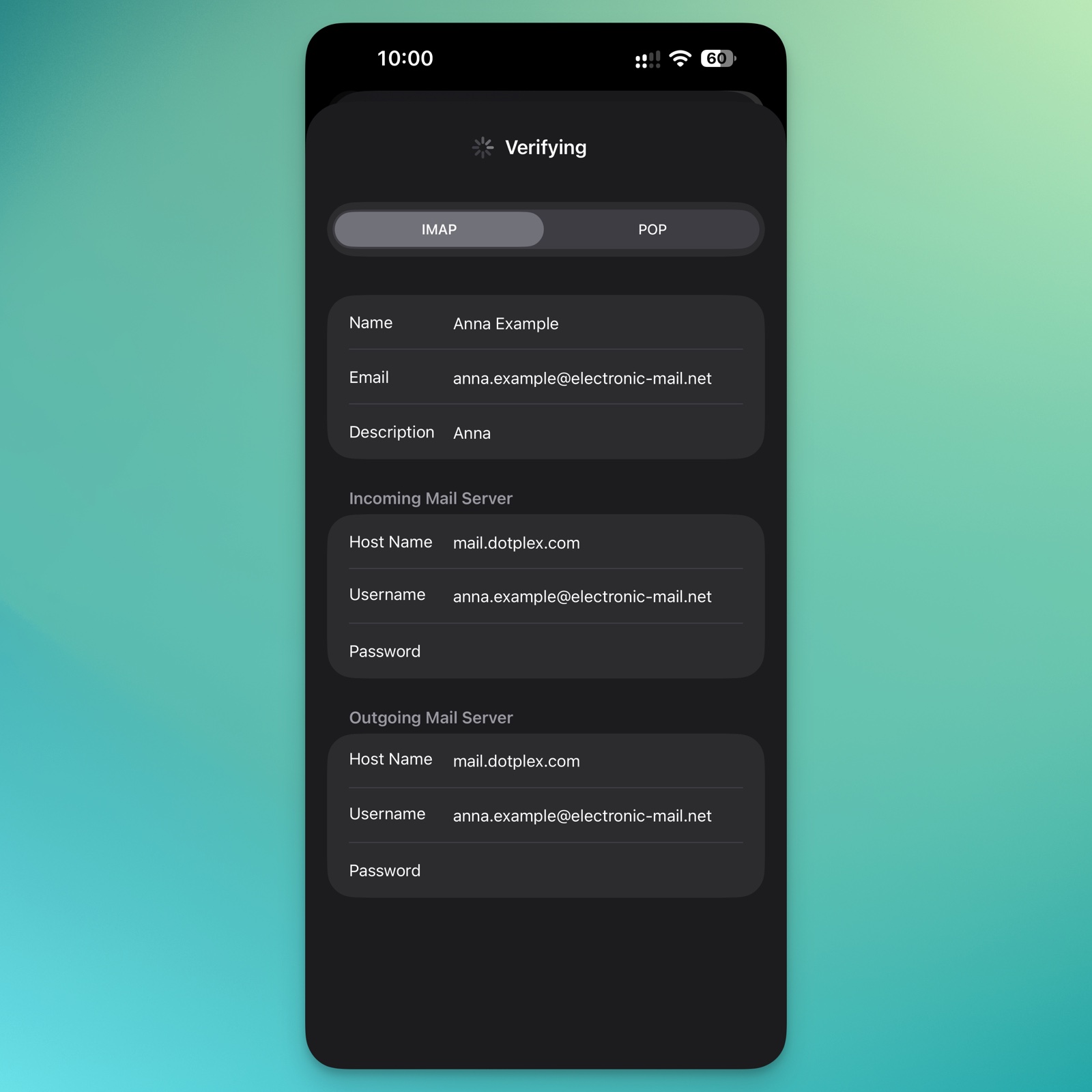
If you get an error message, check host name, username and password for typing errors.
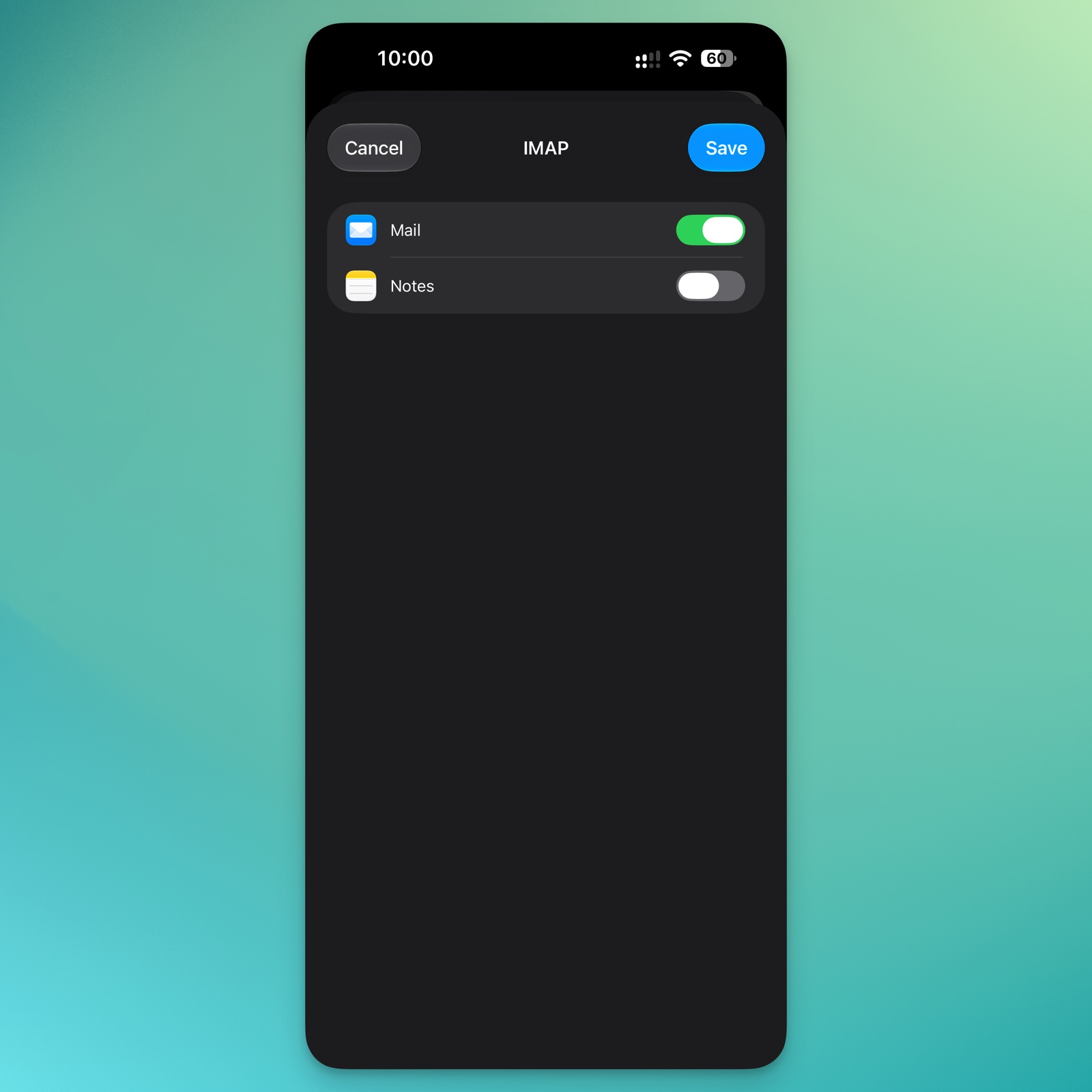
7. Leave "Mail" switched on and tap "Save". You only need "Notes" if you want to sync your notes through this mailbox.
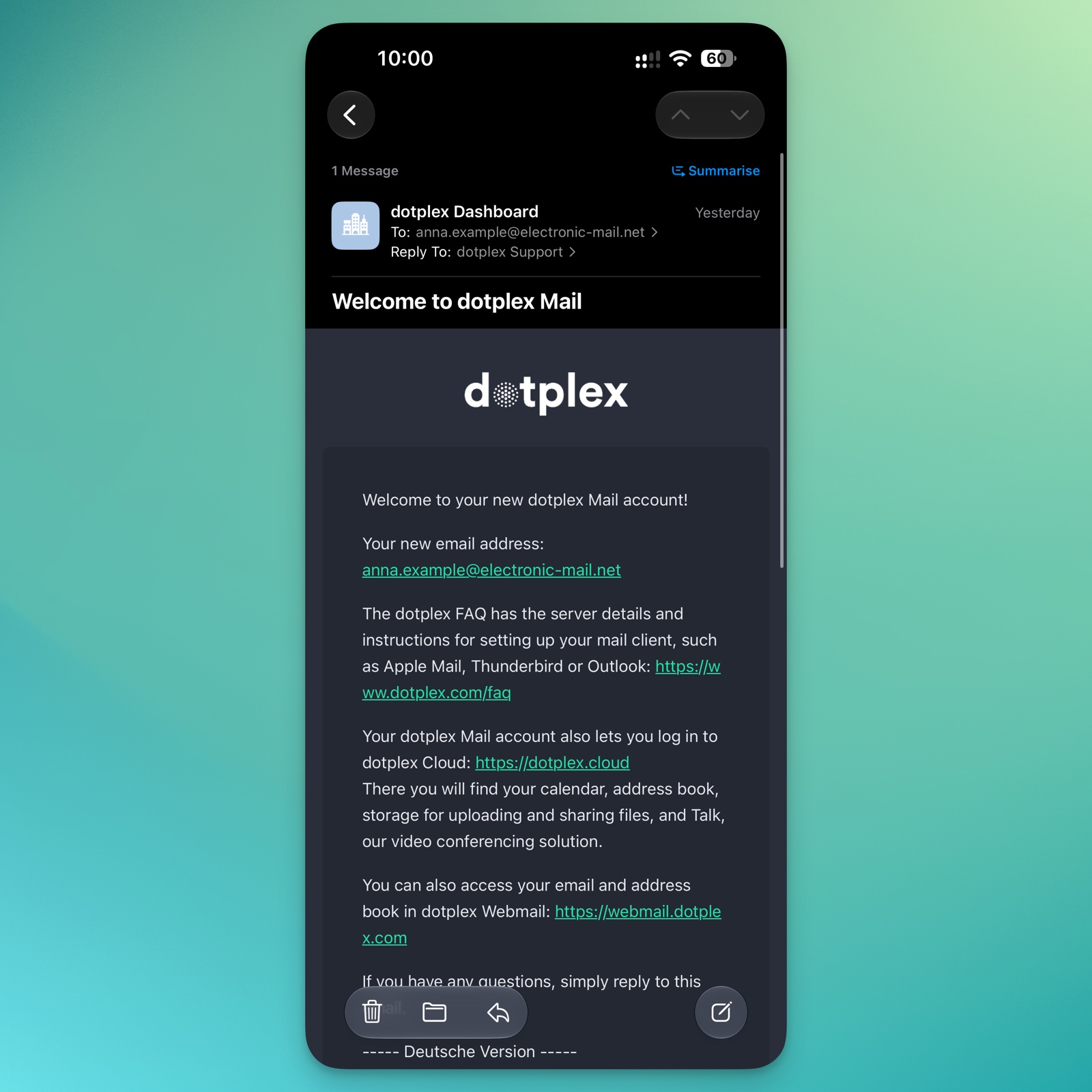
8. The mailbox is set up and appears in the Mail app. In a new mailbox you will already find our welcome message.
Cannot send mail
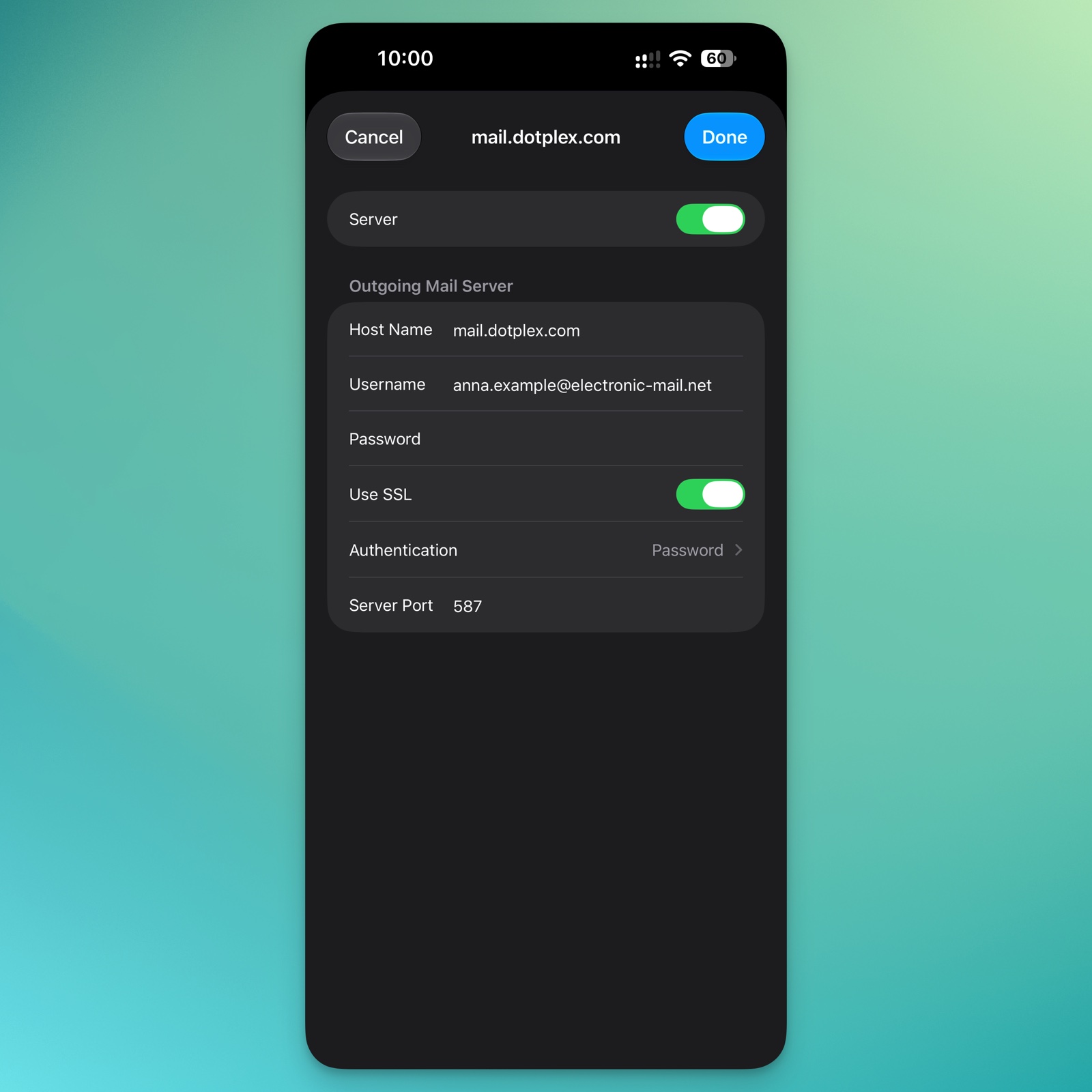
If the iPhone receives mail but cannot send any, the outgoing mail server is usually missing username and password. The iPhone marks these fields as "Optional", but sending through dotplex requires them. This is how you check the setting:
1. Open Settings and tap "Apps", "Mail", "Mail Accounts" and then your account. Tap "Account Settings".
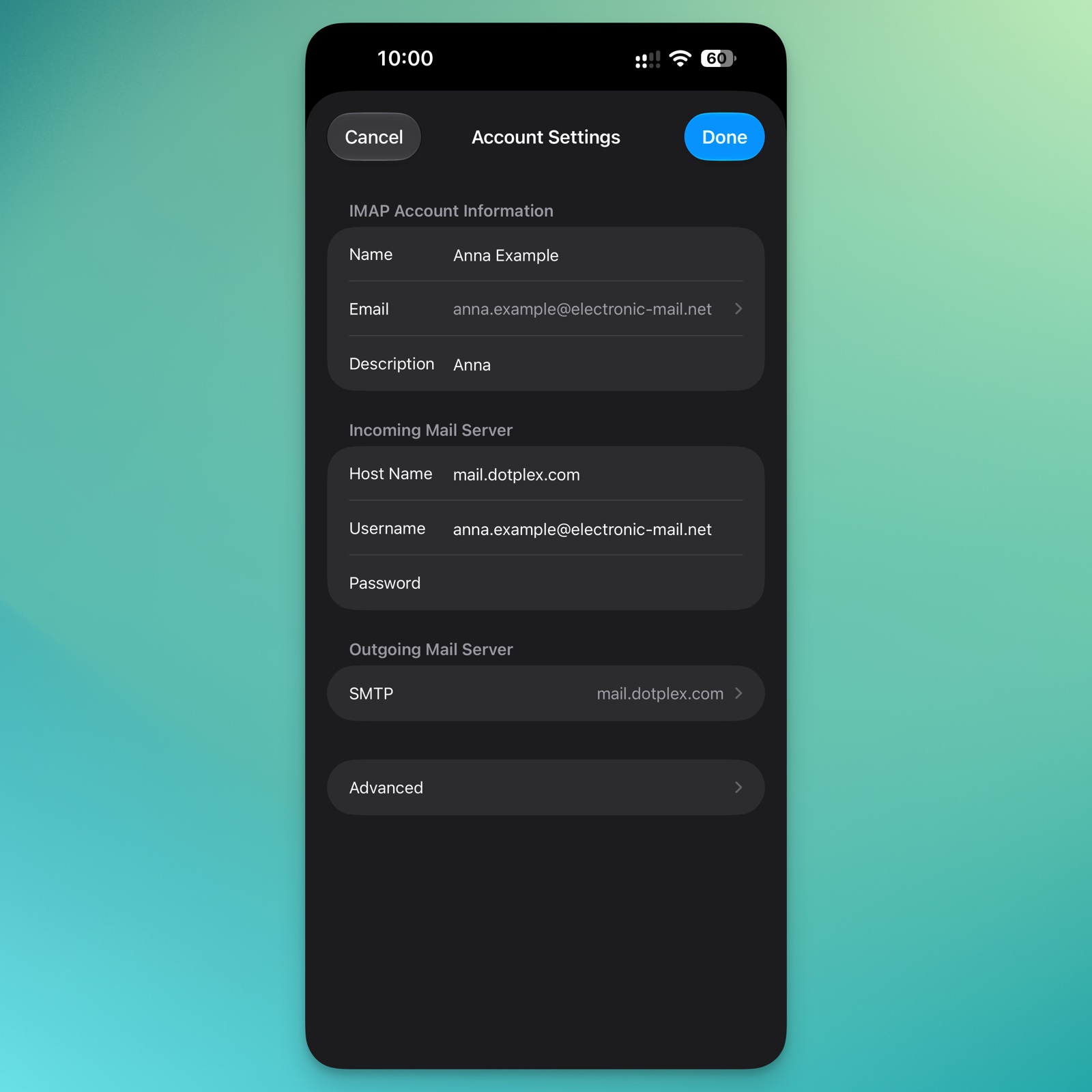
2. Under "Outgoing Mail Server" tap "SMTP" and then "mail.dotplex.com" under "Primary Server".
3. Enter your complete email address as the username and your email password. The remaining settings should look as in the picture: "Use SSL" on, authentication "Password", server port 587. Tap "Done".